














Author – Phoebe Chan – BSc (Hons) Nutrition and Human Health
As a busy practitioner, we understand that managing supplement recommendations, client communication and repeat purchases can quickly become time-consuming.
The YourHealthBasket Practitioner Portal has been designed to simplify these processes, helping you create personalised protocols, manage clients and share supplement recommendation – all without the need to stock products yourself.
In this guide, we’ll walk through the key features of the portal and show you how to integrate them into your daily workflow.
1. Logging In and Accessing Your Dashboard
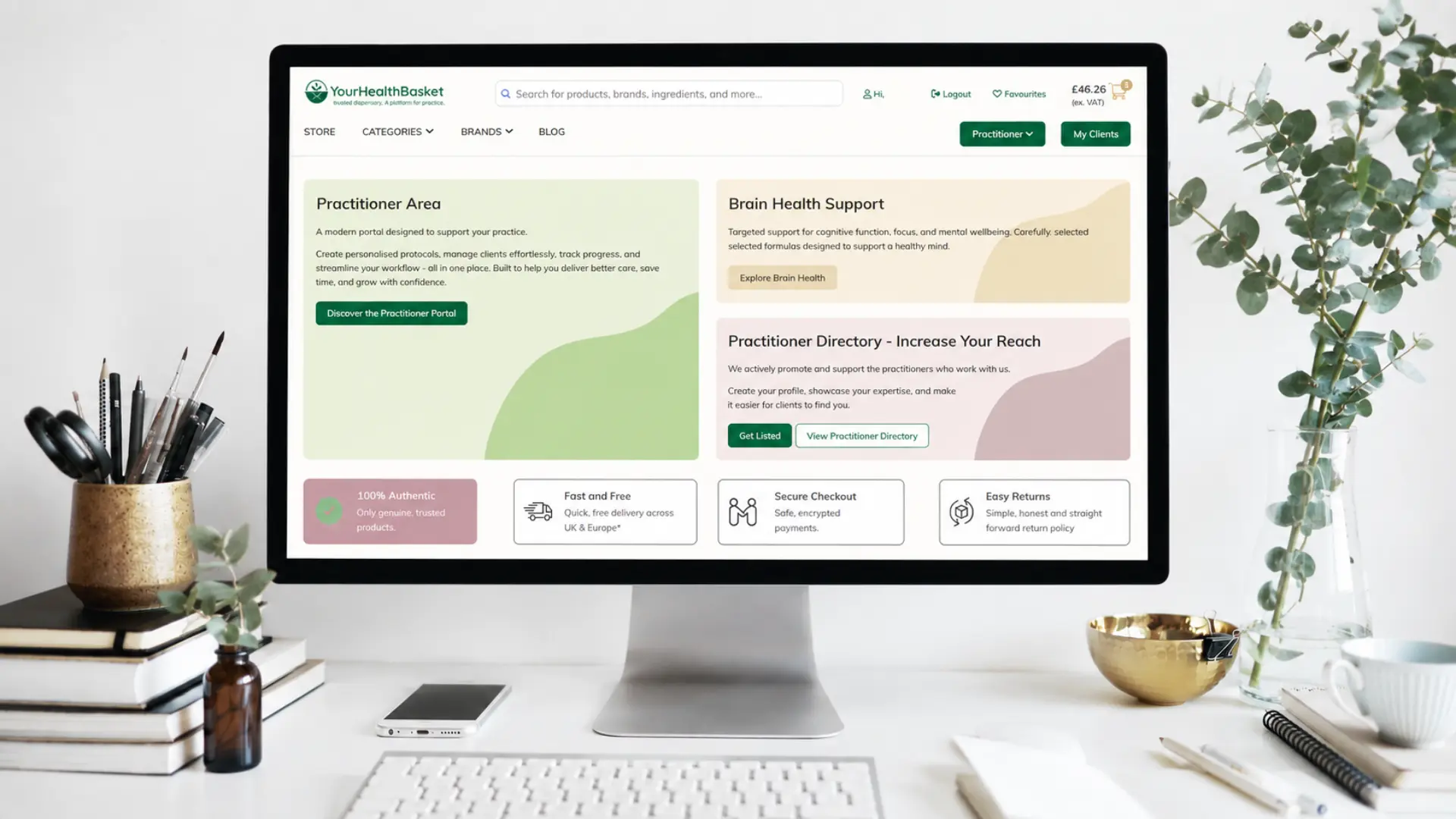
Once your practitioner status has been approved and you have logged into your account , the easiest way to open the practitioner portal is to go to the ‘Practitioner’ tab in the top right corner, then ‘Practitioner Portal.’ This will then open a page which looks like the below:
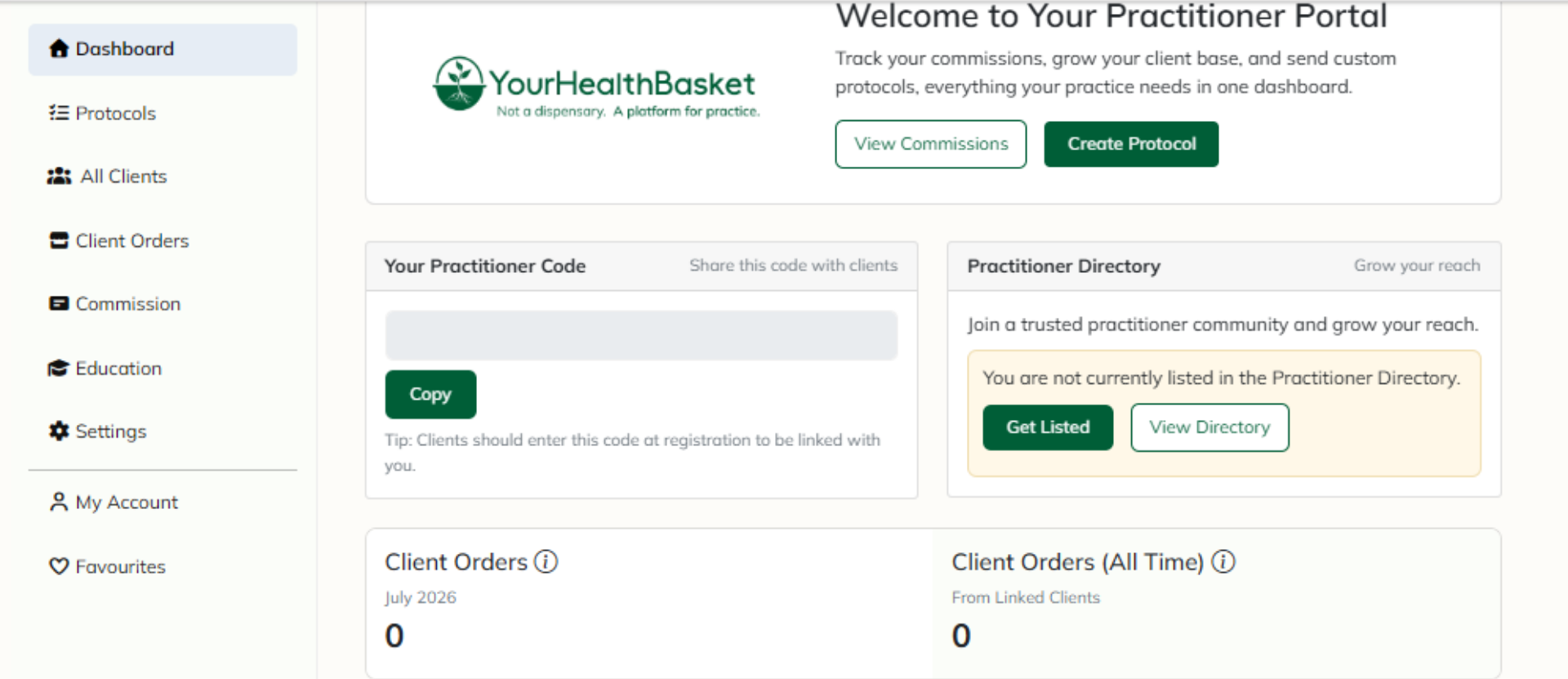
As you can see from the screenshot, you can easily access protocols, client orders, commission and much more on the left-hand side. You may choose to bookmark this page for easy access.
2. Building Personalised Supplement Protocols
One of the biggest advantages of the portal is the ability to create bespoke recommendations for individual clients.
How to create a protocol
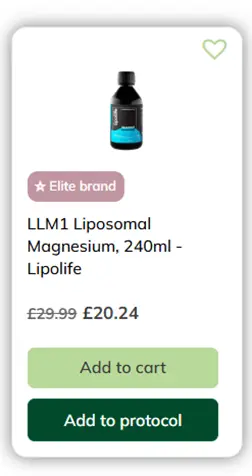
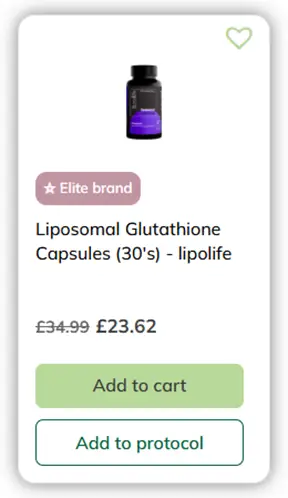
Firstly, find the product you are looking to recommend and click ‘add to protocol’ (see photo). You’ll then have the option to add this to an existing protocol or add a new protocol. If creating a new protocol, you’ll need to provide a title and can add personalised notes and quantities. If you want to add multiple items to one protocol, you can find the other items and click ‘add to protocol,’ instead of click ‘add new protocol,’ click the dropdown on ‘select a protocol’ and click the one you would like to add it to.
Alternatively, another way to create a protocol is adding the item(s) to the basket, clicking ‘view basket’ and then ‘convert to protocol.’ Once created, this will then appear in the protocol section in your practitioner portal.
In summary:
- Search for the product
- Click ‘add to protocol’
- Click ‘add new protocol’ and provide a title OR add to an existing protocol by clicking ‘select a protocol.’
Assigning a Protocol
Assigning to a new client:
Once the protocol has been created, head to the ‘Protocol’ section and click the drop down on the protocol you’d like to assign. Then click ‘Share With New Client’ as seen below:

This will then generate a unique share link which you can provide to your client in order for them to access it. The link can be shared with multiple clients. If the client doesn’t already have an account with YourHealthBasket, they’ll be invited to create one.
Assigning to an existing client:
If you are assigning a new protocol to a client who is already linked to your practitioner account, click the dropdown on the protocol and then ‘Assign to Existing Client’:

Why practitioner’s use protocols
- Greater consistency between consultations
- Easy follow-up appointments
- Improved adherence for clients
3. Inviting and Managing Clients
The practitioner portal allows practitioners to invite clients directly and keep everything organised in one place.
Inviting a new client
There are several ways in which you can invite clients. One way is to click the ‘invite client’ button located in the top right corner (see attached).
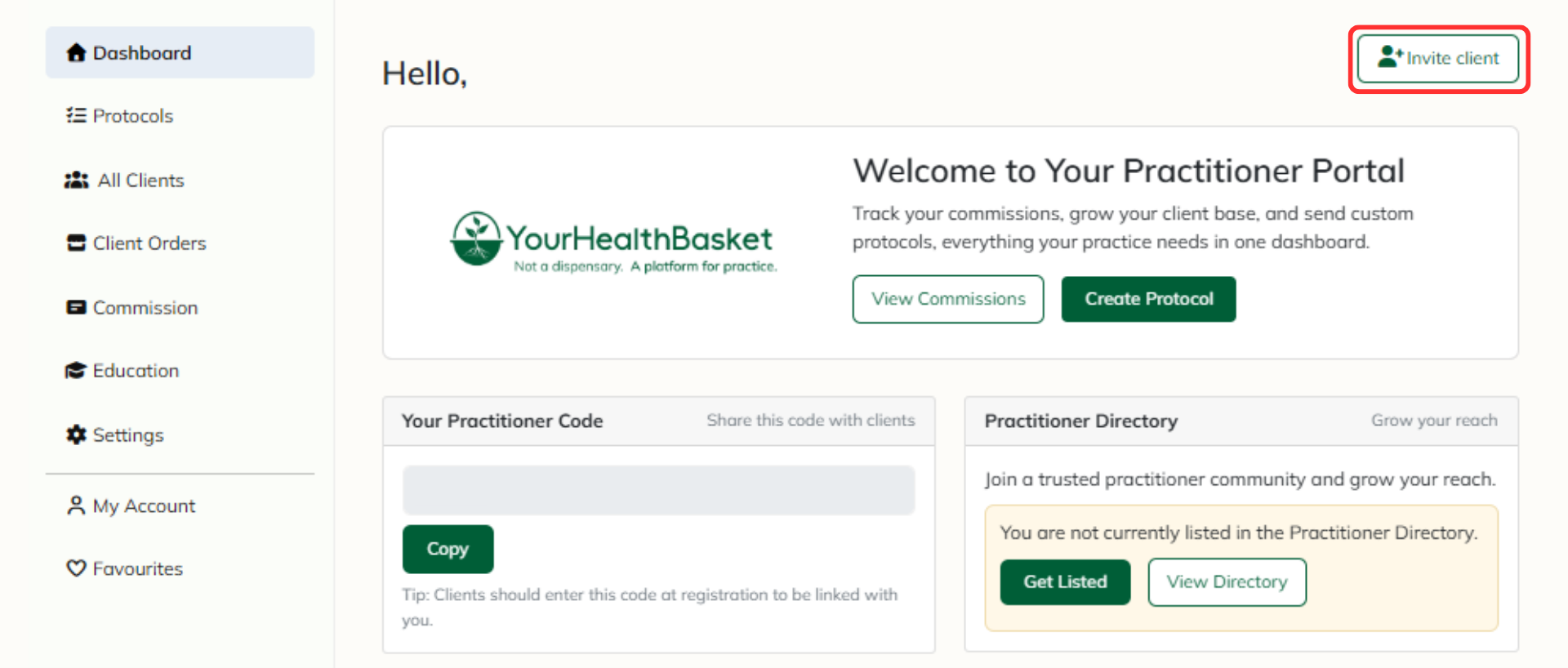
From here, you’ll be asked to enter the clients name, email address and how much discount you’d like to provide them. The client will then be requested to create an account with us if they don’t already have one.
Another way to link a client to your practitioner account is to use your practitioner code which is located on your dashboard:
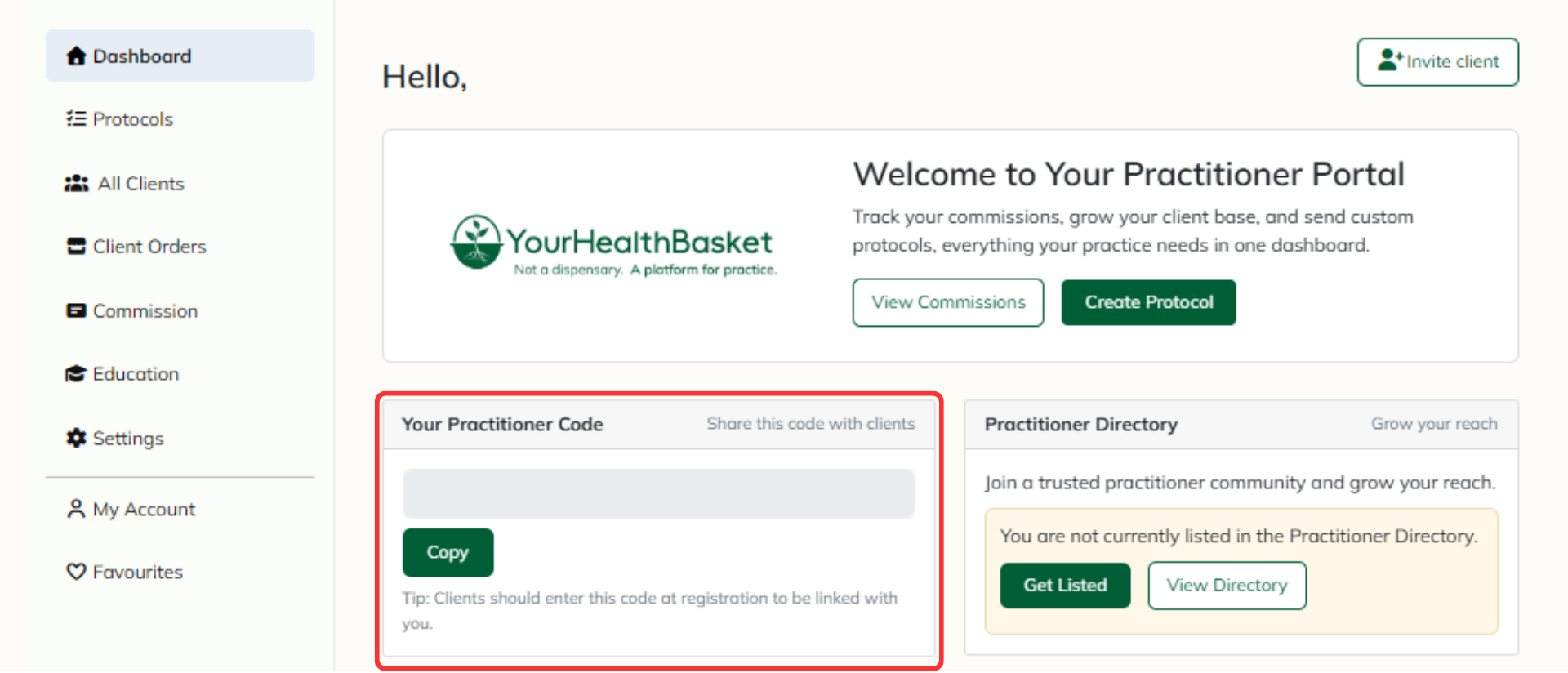
You can share this code with clients when they register for an account for them to be automatically linked, and they can receive a discount if you choose to provide one.
Managing existing clients
As a practitioner, you are able to view all of your client orders through the ‘Client Orders’ section. This will also enable you to see which products they have ordered, as well as the tracking link. Furthermore, is allows you to see if clients have re-ordered recommended products, and if they haven’t, it can prompt a useful conversation during their next consultation.
Furthermore, within the ‘All Clients’ section, you can manage clients’ discounts and the number of protocols assigned to them.
4. Commission
The commission page within the practitioner portal allows you to monitor earnings from client orders. It will also show a summary of unpaid and paid earnings, which is remitted monthly. We offer a 25% discount for practitioners, therefore if you provide a client with 10% discount, you’ll receive 15% commission for example.
We also offer enhanced discount & commission rates of up to a further 10% on our range of Elite brands including lipolife, ION*, Xymogen, New Roots Herbal, CanXida, Jigsaw Health, SFI Health, Pendulum & Synergetic Botanicals! Elite brands can be easily identified by products with the pink banner:
5. Conclusion
The YourHealthBasket Practitioner Portal is more than an ordering platform. It acts as a virtual dispensary, helping practitioners streamline recommendations, improve client convenience and reduce the administrative burden associated with supplement protocols. Whether you’re managing a handful of clients or a growing practice, spending a little time setting up the portal can save hours each month.
FAQ’S (Frequently Asked Questions)
What is the YourHealthBasket Practitioner Portal?
The Practitioner Portal is an online platform that helps practitioners create personalised supplement protocols, manage clients, track orders, and earn commission.
How do I share a protocol with a new client?
Open the Protocols section, select the protocol you’d like to share, and choose Share With New Client. A unique link will be generated that you can send to your client.
What happens if my client doesn’t already have a YourHealthBasket account?
They’ll be prompted to create an account before accessing their personalised protocol.